
Table of Contents
VM Errata / Updates………………………………………………………………………………………………….. 3
Learning Goals………………………………………………………………………………………………………….. 3
Submission:………………………………………………………………………………………………………………. 4
Project 1: Introduction to Penetration Testing………………………………………………………………. 5
Introduction……………………………………………………………………………………………………………… 6
Virtual Machines……………………………………………………………………………………………………….. 6
x86 Version of PenTesting VM………………………………………………………………………………….. 7
VMWare Users on x86…………………………………………………………………………………………….. 7
ARM-based Version of PenTesting VM………………………………………………………………………. 8
Minimum Hardware to Run the Project 1 VM:…………………………………………………………… 8
A Word on IP Networks………………………………………………………………………………………………. 9
Connecting from your Host Through SSH……………………………………………………………………… 9
Understanding the Network Setup…………………………………………………………………………… 9
Option 1: VM GUI (Direct Access)……………………………………………………………………….. 10
Option 2: SSH from Your Host…………………………………………………………………………….. 10
VirtualBox Networking Considerations……………………………………………………………………. 10
NAT Mode (Default)………………………………………………………………………………………….. 10
Bridged Networking………………………………………………………………………………………….. 10
Networking in Docker……………………………………………………………………………………………. 11
Environment Setup:…………………………………………………………………………………………………. 11
Steps for x86 VM users (Windows, Intel-based Macs, Linux on PCs):………………………….. 12
Steps for ARM-based Mac Users (Apple Slicon, not Intel-based Macs)………………………… 12
Project Tasks (100 points):………………………………………………………………………………………… 13
Setup………………………………………………………………………………………………………………….. 13
Task 1: Network Scanning (10 points)……………………………………………………………………… 16
Task 2: Exploit the Shellshock Vulnerability (20 points)……………………………………………… 17
Task 3: Brute Force with Metasploit (20 points)……………………………………………………….. 18
Introduction to Metasploit………………………………………………………………………………… 19
Task 4: Privilege Escalation (20 points)……………………………………………………………………. 25
Explaining SetUID……………………………………………………………………………………………… 26
Task 5: Password Cracking (30 points)…………………………………………………………………….. 27
Background on Using John the Ripper…………………………………………………………………. 28
Task 5.0 Demonstration of John the Ripper – Not For Credit………………………………….. 28
Overview of Tasks 5.1 and 5.2……………………………………………………………………………. 29
Part 1: Cracking task51.zip…………………………………………………………………………………. 29
Part 2: Cracking task52.gpg………………………………………………………………………………… 30
Task 6: There is No Task 6, Ignore it in the Submission File……………………………………………. 32
Rubric…………………………………………………………………………………………………………………….. 32
Reminders:……………………………………………………………………………………………………………… 33
Acknowledgments:………………………………………………………………………………………………….. 33
Appendix 1 – Resources / Links…………………………………………………………………………………. 33
Appendix 2 – Running an x86-based VM on an ARM-based Mac……………………………………. 35
Emulation on ARM-based Macs……………………………………………………………………………… 35
Emulating x86/x64 on Apple MX Chipset………………………………………………………………… 35
Disclaimers………………………………………………………………………………………………………. 36
Requirements…………………………………………………………………………………………………… 36
Obtaining the Virtual Disk Image from the OVA……………………………………………………. 36
Creating the Emulated Virtual Machine………………………………………………………………. 36
Configuring the Emulated Virtual Machine………………………………………………………….. 37
Completing Course Projects via SSH……………………………………………………………………. 37
Obtaining the VM’s IP address……………………………………………………………………………. 38
Completing Project 1 over SSH…………………………………………………………………………… 38
Appendix 3 – VirtualBox Networking………………………………………………………………………….. 39
NAT Networking……………………………………………………………………………………………….. 39
Bridged Networking………………………………………………………………………………………….. 40
Restarting VM Networking…………………………………………………………………………………. 40
Forwarding Ports to Your Host……………………………………………………………………………. 40
Appendix 4 – VM Troubleshooting…………………………………………………………………………….. 42
X86-based VM……………………………………………………………………………………………………… 42
ARM-based VMs…………………………………………………………………………………………………… 45
Closing……………………………………………………………………………………………………………………. 45
VM Errata / Updates
IMPORTANT: For the command part of Task 4, the root shell command, the ARM-based answer is different, as noted in the docs in that section. For now, the autograder is not correctly accepting answers for ARM-based VM users. We’ll fix this ASAP, we expect on Friday.
The x86 version of the VM shipped in Bridged networking mode, we recommend you switch to NAT mode unless you need to take the additional risk of working in Bridged networking mode. See the Settings–>Network pane in the settings and Appenxis 3 for more information.
It may be solved, but you may need to chmod +x task52 once you extract it from the task52.gpg file, to make it executable.
Note the VM’s don’t run the default gnome UI for Ubuntu, instead we installed Ubuntu server and put xfce4 on the x86 version and KDE on the ARM version.
The x86 VM is rather large, at 14GB we did zero out empty disk space and used VBoxManage –compact to minimize the VM size. We believe the size is the result of Ubuntu 24.04 Server size + Docker containers for Project 1 and Project 4, and applications like PyCharm and VScode, all of which are installed on the VM.
Project 4 is also set up on the VM, but we will probably release a separate VM for Project 4 as there are desired changes that we couldn’t get in by Project 1 release time. For now, just ignore the snort-related users on the x86 VM. If you happen to login to the snortstudent account and start the Snort server, make sure you shut it off, because it takes some resources in the VM.
Learning Goals
In this project, you will:
- Learn to use penetration testing applications and techniques in a Linux virtual machine, attacking a vulnerable Docker container.
- Perform network reconnaissance to discover open services running inside a containerized environment.
- Exploit common web vulnerabilities to gain remote code execution inside the target container.
- Use Metasploit to automate attacks and establish shells on the container
- Escalate privileges inside the container by exploiting misconfigured binaries or services.
- Crack passwords and recover sensitive files to simulate postexploitation activities.
- Document a methodological approach to the project.
Submission:
You have unlimited submissions on Gradescope, please don’t abuse it, we reserve the right to limit submissions in case of abuse. In this case, abuse would be using the autograder to brute force an answer by trying many or all combinations possible.
Submit to Gradescope:
- txt (completed, use this filename!)
- txt explaining your attack methods
To be clear, the autograder only requires the single assignment_questionnaire.txt file, and the filename must be exactly that.
The README.txt is optional, but there for a reason: we want you to follow a methodical process. For example, when trying different attacks, keep a list of what you tried. This is incredibly valuable because then you won’t repeat things that haven’t worked. We believe that keeping this file up to date with your approaches and attempts will help you focus. But it’s optional, we don’t grade it.
Important:
- Follow the template exactly.
- Do NOT ZIP your files.
- Do not submit at the last minute to Gradescope, you may see a delay that would cause a late penalty.
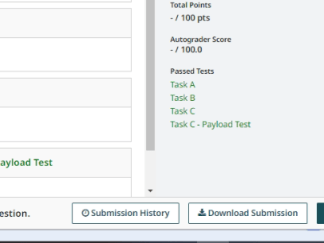
- To submit, click the submit button and drag and drop your two files onto the dialog, or click the dialog to get a File Open dialog per Figure 7.
- Remember to choose the best submission for grading, if you don’t want your last submission graded per Figure 8.
Figure 1 – Submitting to Gradescope
Figure 2 – Activate Your Best Submission
Project 1: Introduction to Penetration Testing
Security Notice / Warning
This project involves port scanning and the programmatic creation of network attacks and other hacking techniques. Be certain that you always direct attacks to the Docker container ONLY. Accidentally scanning outside your local network could have serious consequences.
The Docker network is on 172.22.0.0/24 (CIDR notation) in the VM, do not scan other networks!
- We make such warnings here, in part, so that you avoid unauthorized port scanning. It’s an interesting subject, you can learn more at https://nmap.org/book/legal-issues.html.
- These attacks are intended only for the isolated environment of the virtual machine.
- Your ISP Terms of Service likely ban unauthorized (or any) port scanning, don’t port scan the Internet.
- Never scan someone else’s computer unless you have explicit, written permission to scan.
Introduction
Penetration testing is an important part of ensuring the security of a system. This project introduces some of the common tools used in penetration testing, while also exploring common vulnerabilities. You will learn to have (if you don’t already possess) some familiarity with Linux and IP networking concepts that will help you navigate future projects in Network Security.
In this project, you will gain hands-on experience by exploiting a server running inside a Docker container, hosted within a virtual machine (VM). You will better understand the Shellshock vulnerability, how privilege escalation can occur, and how to crack weak passwords — all crucial elements in penetration testing.
This project is intended to be a gentle on-ramp to the course — the future projects are more difficult. This project will help identify where there might be gaps in your fundamental knowledge related to Linux and networking.
Virtual Machines
For this semester’s project we are releasing an updated virtual machine (VM) for x86 designed for Windows PCs, Intel Macs and Linux on PCs.
We also have a brand-new VM for the newer ARM-based Macs. This new ARMbased version runs natively under virtualization, instead of using much slower emulation.
Please note: at this point we only have the ARM-based VM for Project 1, the
Penetration Testing project. There are other projects that require emulation on an
ARM-based Mac. This is much slower. In some cases, we can offer a cloud-based VM, in other cases you can install project tools locally. The point is, please reach out to course staff early if you have problems with VM performance.
If we need to setup a cloud VM for you for Project 3, we need several days to get that set up for you, so make sure you start that project early, at least to setup and test the VM.
x86 Version of PenTesting VM
This version is x86-based, using Ubuntu 24.04 which uses the xfce user interface. This is done to require less processing power than the Gnome-based full Ubuntu release for graphical user interface (GUI) users.
One GUI note about xfce, if you try to grab the lower corners of windows it’s hard to grab and resize diagonally. It’s much easier to grab and drag the upper corners of windows.
This VM has the toolsets (Guest Additions for VirtualBox, openvm-tools and openvm-tools-desktop for VMWare) to work with two popular virtualization solutions. We think the VMWare tools will also work with ESXi. Please let us know if you’re using a different solution than VBox, VMWare or ESXi, and how it works.
VMWare Users on x86
For people using the x86 VM on Windows with VMWare, be aware of an issue with Windows 11 (this is not an issue in Windows 10). Run VMWare as Admin, not as your regular Windows user. To do this, when you bring up the VMWare app in the Windows launch/start menu, right click on it and choose “Run as Administrator”:
We found in testing that running as the regular user makes the VM slow/laggy. Running as admin is the fix for this.
ARM-based Version of PenTesting VM
The ARM-based VM instead runs with the KDE user interface. On this VM we have installed serveral VM toolikits for various virtualization platforms. We provide a qcow2 file for use with UTM and qemu. We also provide a .ova file for use with VirtualBox or VMWare. It should also work for ESXI (Flings) for ARM, however we’ve only tested with UTM, VirtualBox (and perhaps VMWare).
There is a video showing the detailed installation steps for each of these platforms, please see Ed Discussion’s main project post, or Canvas.
Minimum Hardware to Run the Project 1 VM:
We expect some people to run the x86 VM on older CPUs. There’s no hard line of what the minimum specification is, these are minimum guidelines, your experience may vary:
- Intel 8th Gen (Coffee Lake, 2017/2018) or newer, because…
- 8th generation chips better support virtualization than previous gen chips.
- At least 4 logical cores (e.g., quad-core CPU or dual-core with hyperthreading).
- 4 GB RAM strongly recommended, perhaps could run on 3GB, not less.
- SSD strongly recommended for increased performance.
- Host and OS must support virtualization (e.g., VT-x enabled in BIOS).
- VirtualBox (or other virtualization software) must be up to date.
For the ARM-based, newer Mac users, please see Appendix 2 for instructions on how to setup the provided qcow2 file with UTM. If you prefer, you can use the provided ova file with VirtualBox or other virtualization software. We have only tested with UTM and VirtualBox on ARM-based Macs, our ability to support other virtualization packages is limited.
A Word on IP Networks
For your convenience we have opened port 22 on the VM. The VM runs the openssh server. In VirtualBox, you can set up Port Forwarding, see Appendix 2 for information. Once you set up port forwarding of the VM port 22 to your chosen port on your host, you can simply use ssh localhost:chosen_port_number to login to the VM from your host.
Because we have opened the ssh port on the VM, the VM is only as secure as your network. In theory, your typical home network has a router that uses Network Address Translation and blocks all incoming ports from incoming connections from the outside world. This means in theory, assuming that your router isn’t hacked, attackers on the Internet can try to attack your router’s WAN IP Address, but the router will rebuff any connection that didn’t originate in your network. Also in theory, your ISP is doing something to block these attacks, but some will get through.
The minute you open a port on your router for your favorite game, you have opened a can of worms that presents a new attack surface to attackers. We strongly recommend you turn the port forwarding on your router OFF while working on this project. Having said that, we also recommend you turn router port forwarding off all the time.
Connecting from your Host Through SSH
Understanding the Network Setup
Key Point: Docker container ports are exposed on the VM itself. When using nmap, remember that ports on 172.22.0.1 are VM ports, not individual container ports. We publish these container ports on the VM to enable SSH access for users who prefer working from the command line.
Two Ways to Work with This Project
Option 1: VM GUI (Direct Access)
If you’re working directly in the VM’s graphical interface, accessing the vulnerable website is straightforward. Simply enter the Docker container’s IP address and port number into the browser. Since the VM has a direct network route to the Docker container, the connection works seamlessly.
Option 2: SSH from Your Host
Some users prefer to bypass the VM’s interface entirely and work through SSH from their host machine. This approach requires understanding your virtualization software’s networking configuration.
VirtualBox Networking Considerations
Your networking setup in VirtualBox affects how you access the vulnerable website from your host:
NAT Mode (Default)
- Host and VM appear to be on the same network but have limited communication
- To access container services from your host, you’ll need port forwarding
- With port forwarding configured, access the vulnerable web server using http://localhost:[forwarded-port] (e.g., http://localhost:9999)
Bridged Networking
- VM becomes a full network member alongside your host
- VM receives its own IP address from your router’s DHCP
- Provides complete network communication between host and VM
- Access the vulnerable website using the VM’s assigned IP address and target port
Bottom Line: If you’re working from your host machine rather than the VM GUI, check your VirtualBox networking mode. You need to switch to Bridged networking or configure port forwarding in NAT mode.
For more information, see Appendix 3.
Networking in Docker
Relative to the Docker network, remember that the VM has one network interface that talks to your host, and another interface to talk on the Docker network. You’ll see more about this in the details of Task 2. The Docker network is 172.22.0.0/24 on this VM. Google CIDR (related to networking) if this notation doesn’t make sense to you, it’s CIDR notation to denote a network with 254 nodes. The VM Docker interface and the Docker container both live in this network address range.
Here we repeat our warning to only use nmap or zenmap for scanning the Docker network (172.22.0.0/24)! Do not scan outside the VM network.
Environment Setup:
You will be provided with a virtual machine (VM) based on Ubuntu 24.04 Linux, pre-installed with necessary tools like Metasploit and John the Ripper. Inside this VM, a Docker container will be run, it has various vulnerabilities that you will attack.
Provided File for Windows / x86 / PCs:
1.amazonaws.com/CS6262Project1-ARM-VBox-Release-02.ova :
The Virtual Machine image (Ubuntu Linux)
Sha256:
4ff7750b2c1aea564a1025e78c08d3e577bc9579182355489fe7e4e12c2793a0
Provided File for ARM-based Macs:
1.amazonaws.com/CS6262Project1-ARM-Release-
02.qcow2.zip: for qemu/UTM
Sha256:
f9d2d434827add699913ebee6d3d35675b2d3c24bac1dc274e2a021dd9b02ed9
1.amazonaws.com/CS6262Project1-ARM-VBox-Release-
02.ova: — for VirtualBox, VMWare, etc
Sha256: c417b7361e827b5e5fbf161db28244a924cce7dd3b7cac025eb4f2ad4d13003a
Provided File for all:
1.amazonaws.com/assignment_questionnaire.txt: Template for
final submission, you must use this file name for submission! Use wget or curl to retrieve it.
NOTE: Use curl/wget/save using browser to get the assignment_questionnaire.txt file, if you create it manually make sure it has the correct name or the autograder will reject it.
Steps for x86 VM users (Windows, Intel-based Macs, Linux on PCs):
- Install the latest version of VirtualBox (7.1.20 or newer).
- Download the VM ova file from the link on Canvas.
- Import the VM ova file into VirtualBox using the Import Appliance menu item.
- Start the VM in VirtualBox once it’s done importing, this will take some time, maybe a minute or two.
- Ensure that the user is penteststudent and login.
- The password is 6262student and can also be found in Canvas.
- Once logged in, from your home directory, run:
./StartShockServer.sh
- The vulnerable container will then be accessible on the Docker network.
- For this project, the container address is on the 172.22.0.0/24 network.
Important: You are attacking the Docker container, not the VM itself.
Note: Once you start the Docker container, it will restart itself if it dies, unless you run the ./StopShockServer.sh script.
Steps for ARM-based Mac Users (Apple Slicon, not Intel-based Macs)
We provide a qcow2 file, this works directly with UTM. We also provide the vmdk version of this qcow2 file which can be used in VirtualBox.
A set up video and links for the VM are shared in Ed for reference as you go through this step.
Once you get the VM booted, because we can’t predict that people have big screens, we left the VM display resolution at a lower resolution. Unlike
VirtualBox, UTM may not automatically resize the display. You have to go into the VM Display settings and set it to 1920×1080 or whichever choice is appropriate for your screen.
Project Tasks (100 points):
Setup
The first step in any penetration test is to gather information about the network and servers you’ll be exploiting. In this task, you will perform network scanning and answer a few questions based on your findings. On startup, the shellshockvulnerable Docker container in the VM runs a webserver and listens to multiple ports for incoming messages.
In the VM logged in as penteststudent, open a terminal window.
First, before doing anything else, run the command to start up the Docker container that runs the vulnerable services:
./StartShockServer.sh
You should see a message a few moments after the container has started. While it’s not strictly necessary, when you are shutting down or rebooting the VM, you can run the shutdown command first:
./StopShockServer.sh
If you don’t stop the container and reboot the VM, it will be running when you start the vm again.
Now, let’s investigate the network. At the command prompt, enter this command:
ip a
You will see the output pictured in Figure 1 on the next page.
In the output you will see various network interfaces. The important ones are:
lo — this is the loopback interface, it refers to the VM itself. It’s the same, effectively, as 0.0.0.0 and 127.0.0.1 (with minor differences).
enp0s3 — this is the VM interface with your host. If you are trying to ssh into your VM from your host computer, you use this address. You may need Bridged networking for this, see Appendix 2. For Ubuntu24.04, enp0s3 always seems to be the name chosen for the first interface, instead of the traditional eth0.
docker0 — this is the default Docker network on 172.17.0.0/24, we will not be using it.
br-a795c89aa411 — this is an important interface, it’s the VM’s interface on the Docker network. From this entry you can see the Docker network is 172.22.0.0/24, note this address as it will come in handy for the next steps. It’s possible the interface will use a different br-xxxx ID, though we wouldn’t expect it to. Here you can see the VM’s Docker address is 172.22.0.1.
Figure 3 — Output of ip a command shows the different network interfaces’ properties
There’s also (when the container is running) a veth-xxxx interface. This is the virtual ethernet interface for the running Docker container. While you could use the IPV6 address you see in the output, for this project you should use IPV4 exclusively, don’t use IPV6 addressing. You may not see this veth- interface, we’re just pointing it out for the educational value, sometimes it doesn’t appear.
Now it’s time to get down to the tasks:
Task 1: Network Scanning (10 points)
Find the IP address of the vulnerable Docker container on the NAT network using nmap or zenmap (the GUI version of nmap). You’ll find both installed in the VM, ignore any GTK errors if you run zenmap from the command line.
Remember to limit your scans to the 172.22.0.0/24 network and nodes on that network only! Don’t scan outside the Docker network!
You will see some ports exposed on 172.22.0.1, the VM. These simply reflect the ports on the actual Docker container, for people using ssh to complete the project. You can ignore the ports on this 172.22.0.1 address when answering questions in the assignment_questionnaire.txt. The Docker container address is different.
NOTE: You have zenmap on the GUI menu to use, it’s more intuitive to use than the command line version. It will complain that it’s not run as root, that’s OK.
Use an Intense scan in zenmap to identify all the open ports on the Docker container’s webserver and submit:
- The IP address of the Docker container (not the VM itself!)
- The port number that handles http traffic to the Apache web server on the Docker container.
- The port number that handles http traffic to the Python web server on the Docker container.
You can determine the server type in the zenmap output, and with nmap on the command line with the correct options.
nmap and zenmap by default only scans the most popular 1000 ports, to scan EVERY port from 1-10000, you need to specify -p 1-10000 in the nmap command. All the ports you’re looking for are lower than port 10000.
One suggested workflow for zenmap is to do a “quick scan” of the 172.22.0.0/24 network to identify nodes on the network. Then inspect interesting nodes more closely with further, more intense scans. Don’t forget to use –p <args> as needed to find non-standard ports.
If you are scanning and not finding web server ports, did you remember to run ./StartShockServer.sh in your home directory?
Deliverables
Submit in assignment_questionnaire.txt:
- The IP address of the vulnerable container in the Docker network. (3 pts.)
- The HTTP port number of the container’s Apache2 webserver. (4 pts.)
- The HTTP port number of the container’s Python webserver. (3 pts.)
NOTE: Use curl/wget/save file in browser to get the assignment_questionnaire.txt file, if you create it manually make sure it has the correct name or the autograder will reject it.
Task 2: Exploit the Shellshock Vulnerability (20 points)
In this task, you will launch the Shellshock attack on a remote web server. Many web servers enable Common Gateway Interface (CGI), which is an older method used to generate dynamic content on Web pages and Web applications.
Many CGI programs are written using a shell script. Therefore, before a CGI program is executed, the shell program will be invoked first. This can be triggered by a user from a remote computer, typically using the curl command. To access this CGI program on the Docker container from the VM browser or command line, you need to first make sure you started the Docker container using:
./StartShockServer.sh
Then, you can either use a browser by typing the following URL:
http://<IP address found in part 1>:<http port found in part 1>/cgi-bin/shellshock.cgi
or use the following command line program curl to do the same thing:
$ curl http://<IP address found in part 1>:<http port found in part 1>/cgi-bin/shellshock.cgi
For this task, your goal is to launch the attack, using curl, through this URL with the proper parameters, such that you can achieve something that you cannot do as a normal remote user. You will be able to execute code remotely, directly on the container, without using ssh to login or even knowing a password!
NOTE: Please don’t use nmap’s –script functionality to get this, we want a curl command with the actual “hack string” you need to hack this.
You will craft an attack that directly executes the /usr/bin/task2 program
(which needs your GT Login as the input: /usr/bin/task2 gburdell3). It will generate the submission hash for you when your attack is correct.
PLEASE NOTE: On the x86 VM, there are more attacks that work, you can get a direct shell and then execute the /usr/bin/task2 command in that shell.
For some as-yet unknown reason, on the ARM-based VM, these wider attacks don’t work. You need to call /usr/bin/task2 directly in your attack with your GT Login (like /bin/task2 gburdell3) as parameters. So your attack will be a one-liner that returns the hash.
It’s also possible on the x86 VM, because you can get a shell, to run attacks using the netcat (nc) listener. We tried setting up a listener with nc –nvlp in one VM terminal window and ran the attack in a second VM window. The listener gets the shell and you can then run /usr/bin/task2 with your GT Login there.
One last note about this task, you may notice that /bin/task2 works as well. In past Ubuntu versions, /bin and /usr/bin were separate directories. Now in Ubuntu 24.04 (which the VM is based on), /bin is just a symlink to /usr/bin.
Deliverables
Submit in assignment_questionnaire.txt:
- The command (with all parameters) you used to exploit the container. (10 pts.)
- The hash from running /usr/bin/task2 on the container. (10 pts.)
NOTE: Use curl or wget to get the assignment_questionnaire.txt file, if you create it manually make sure it has the correct name or the autograder will reject it. All the project resources are linked in Canvas and Ed.
Task 3: Brute Force with Metasploit (20 points)
While you have found a way to execute /usr/bin/task2 on the Docker container without a password, the /usr/bin/task3 executable is owned by a different user account that has different privileges. To execute this file and complete the challenge for Task 3, you’ll need to gain access to that user’s login.
During a penetration test, weak credentials remain one of the most common vulnerabilities found in systems. Attackers often exploit this by attempting to authenticate using common username and password combinations. That’s where Metasploit’s brute force capabilities come in.
Metasploit includes powerful auxiliary modules for password attacks, along with extensive wordlists of commonly used usernames and passwords. For this project, we are going to use Metasploit’s SSH brute force module to identify weak credentials on the Docker container. This will demonstrate how penetration testers systematically identify accounts with poor password hygiene.
Metasploit works by automating login attempts against the SSH service, trying different username and password combinations from predefined wordlists. This is a critical skill for penetration testers, as password spraying and credential stuffing attacks are frequently used in real-world scenarios.
This approach teaches students about:
- The importance of strong password policies
- How automated tools can exploit weak credentials
- The built-in wordlists available in security testing frameworks
- Real-world attack patterns used by threat actors
Introduction to Metasploit
NOTE: If you are familiar with Metasploit you can skip this introduction and skip to the Task 3 Assignment heading.
- Begin by opening a new terminal on your VM. In the new terminal type:
msfconsole
After a few moments, the Metasploit Framework console (msfconsole) will load. For this project, msfconsole is the main way of accessing Metasploit. While there are other tools and command prompts associated with Metasploit, msfconsole is suitable for the related tasks of this project.
It may take a little time for Metasploit to load, you are ready when
you see the msf6 prompt at the bottom:
Figure 4 – Metasploit opening screen
The text-art image will likely be different. You can ignore the warning about Metasploit being more than two weeks old.
Wait a minute for the msf > prompt before entering commands.
- For this example, we’re going to scan the ports of a host. You can use the results from task 1 to ensure Metasploit is behaving properly. In practice using a Metasploit module solely for the purpose of scanning ports on a host is a little overcomplicated, since nmap can do much more and takes less setup, but this does offer a good introduction to using a Metasploit module.
- A Metasploit module is the base of any task performed in Metasploit. It consists of Ruby code that is written to perform a certain task (like exploiting a certain vulnerability or scanning a certain kind of system). There are multiple different varieties of modules, but for our purposes we’ll focus on three of them:
- The Exploit modules: These are modules written to exploit a certain vulnerability.
- The Auxiliary modules: These are modules written to perform some tasks related to exploiting a system (like scanning). Within the auxiliary modules there are many kinds of modules. We’ll be using the “scanner” modules for this example.
- Payloads: Calling these modules is a little misleading. They are the payloads (for example the shellcode) that are sent within the exploit.
- First, we must find the correct module. We know it’s scanning the system, so let’s start by searching for “scanner” using the command
(in msfconsole):
search scanner
- Hmm… that’s quite a few results (760 at the time of writing this).
Figure 5 – Shows 752 results for search scanner command
The reason there are so many results is that “scanner” is a class of auxiliary modules (as seen by there being so many modules beginning with “auxiliary/scanner”). So, searching for “scanner” (or “scan”) will give everything at all related to network or vulnerability scanning.
- So, we need to narrow our search. One way of doing this is with the “grep” command, which filters the output. (grep is also the commonly-used “find/search” command in Linux when you are searching inside files.) Since we’re looking to scan the ports, let’s try the following command to search for “portscan” within the search results from “scanner”.
grep portscan search scanner
Figure 6 – Narrowed down results for grep portscan search scanner command
That seems a little better. Only 7 results. Since we’re scanning for open tcp ports, let’s use: “auxiliary/scanner/portscan/tcp”. To use this metasploit module, you should run the command:
use auxiliary/scanner/portscan/tcp
You will get this response:
Figure 7 – Shows the new prompt with scanner/portscan/tcp
You now see “auxiliary(scanner/portscan/tcp)” after the prompt, indicating you are using the auxiliary(scanner/portscan/tcp) module.
- Now that we’re using the correct module, we must set the correct options. Try running the command options. You should see something like this on the next page:
Figure 8 – Viewing options such as RHOSTS
While each of the options is marked as required, most of the prefilled values work for our purposes. The only one we need to change is RHOSTS. RHOSTS should be the IP address of the host we want to scan. In this case, you should set it to the IP address of the Docker container, that you found in part 1. You can use the command:
set rhosts insert_IP_of_target_container
Now try running options again and ensure the RHOSTS option is set to the correct IP address for the Docker container.
- Now use the run command and you should see the same list of open ports that nmap showed. (While “run” is usually used to run auxiliary exploits, the command “check” and “exploit” are often used to check and run exploit modules.)
run
Now you’ve seen an example of how to use Metasploit. You’ll follow a similar process when exploiting the vulnerability to run /usr/bin/task3.
Make note of the ssh server port found, if you didn’t note it during Task 1.
Task 3 Assignment:
- Research the available Metasploit commands to learn how to brute force a ssh login attack. Remember if there are too many search results you can use Metasploit’s grep command to narrow down results, as you did earlier in the Task 3 practice section above.
- When narrowing down the search properly there are only fourteen results to inspect (as of Summer 25). It should be obvious which one to use, if you are unsure try out different attacks! Experiment!
- The attack will use files called txt and unix_passwords.txt. These files are on the VM, not the container.
- You need to use a Linux command to find these files on the VM so you get the full path to the files.
- Research the Linux find command and understand how to specify the search location and set other parameters for your search.
- You will see many “Permission Denied” errors, to redirect the errors away from the screen, append 2>/dev/null to your Linux command to redirect errors off the screen.
- Once you have the full path to the files, research the available Metasploit commands to figure out how to use those files in your brute force attack. The options command is your friend.
- Find an option to stop the search when a successful login is made, or the process will continue past the login. Set this option as desired. Also set the VERBOSE option as desired, also set STOP_ON_SUCCESS to true.
- Set the ssh port to scan to the port you found earlier in the Task 3 Introduction to Metasploit section.
- Run the brute force ssh attack once all options are set using run.
- Once the attack is finished, you’ll need to use ctrl-C to interrupt the scan if you didn’t set the STOP_ON_SUCCESS option.
- You should see something like this in the output:
- Use the sessions -i 1 command to enter your running session (use the session number you obtained in Step 10, run the sessions command to see all active sessions.
- Run the id command, you will be the user system_admin.
- Now you have permission to run /usr/bin/task3 gt_login and get your Task 3 hash.
Normally you would allow some amount of time waiting for the ssh attack to complete, as the attack will try every combination of usernames and passwords in the username and password files.
For convenience we have set up these files to finish very quickly, you won’t have to wait long to get in.
NOTE: You should keep the reverse shell running after finishing Task 3, as you will need it in Task 4.
Submit in assignment_questionnaire.txt:
- Exploit module name from Step 2 (7 pts.)
- The port you use in Step 8 (6 pts.)
- Hash from /usr/bin/task3 (7 pts.)
Task 4: Privilege Escalation (20 points)
Your goal in Task 4 is to upgrade the privilege for your command shell by exploiting a setUID vulnerability. You will run /usr/bin/task4 with a higher effective user id (euid), not the current user “system_admin”.
On the x86 VM: To be clear, once you successfully upgrade your privileges, when you run the id command, you will still see the system_admin user and group. In addition, you will also see an “euid” (effective user id) of 0 (root). This means you have a root shell.
On the ARM VM it’s a little different to escalate your privileges, read on.
You will learn about various commands in Linux and find one that lets you escalate your privileges to root on the Docker container.
NOTE: Remember to keep the shell open from the previous task, or recreate the steps needed to get the shell in Metasploit from Task 3.
Advanced users wishing to use ssh directly may use the username and password from Task 3’s brute force attack to gain a shell on the Docker container with ssh (instead of using the Metasploit shell). There will be some surprises that can be overcome by carefully reading errors, the ssh usage (run ssh -h) and reasoning about operating system file permissions.
Explaining SetUID
For those not familiar, there is a concept in Linux of running a command as a more powerful user. For example, if you run ls –l
/usr/bin/passwd you’ll see the following output in Ubuntu:
Note the normal “x” is not there in the fourth position of –rwsr-xr-x. Instead, the fourth position is perhaps unexpectedly an “s”. This means the passwd executable is setUID. There is setUID, setGID, and sticky bits. Here we’re focused on setUID. When a normal user runs a program with setUID permissions, the file runs as if it were run by the file owner. In the case of the passwd executable, the owner is root, so this is a form of privilege escalation.
This is because a normal user can’t edit the /etc/shadow file, so they can’t change their own password. A higher privileged user like root needs to make changes there. Thus, executables like the passwd program are setUID to accomplish their purposes.
SetGID does the same thing as setUID except the file is run associated with the group that owns it. There’s also the sticky bit, you can read about that, it controls directory permissions.
Task 4 Assignment:
Assuming you are using the shell you gained in Task 3, as a first step, type the id command in your shell. You should see system_admin which is your user ID. Now, run /usr/bin/task4 gt_login. You will see a permission denied error. That is because /usr/bin/task4 is configured to allow only a privileged user to run it. Thus, you need to find a way to run /usr/bin/task4 as a privileged user. A feasible approach is to spawn a shell running as the “root” user and run task4 through the shell.
Useful Resource for the Windows / x86 VM: https://gtfobins.github.io/
NOTE: Make sure you do the following search on the Docker container, not on the VM.
You will want to look at the output of ls -l /usr/bin on the Docker container for a program which has a higher privilege than the default user and run /usr/bin/task4 gt_login in the shell spawned.
If you run ls –l /usr/bin you’ll get a very long list. Consider piping the output through the less command to see it one page at a time. Better yet, pipe the output of ls –l to grep and search for a pattern that identifies a setUID executable.
Alternatively, you could use find with the –perm parameter (research this parameter) to find only setUID programs. This is the typical way of identifying them.
X86 / Window / Linux users
For x86 users, also look at the commands featured on the gtfobins.github.io link above. There’s a command on that list that’s setUID on the Docker container. Use ls –l to see permissions on the Docker container and perhaps grep for something that will get you setUID files only in the output list. Your job is to figure out which command in both lists is setUID and find a way to execute it to get a shell.
ARM-based Mac users
For ARM-based Mac users, for some reason this target program doesn’t work the same way to elevate privileges as it does on x86 Ubuntu. Instead of using the gtfobins.github.com list compared to the list of setUID executables, just look at the list of setUID executables in /usr/bin and you will see an obvious choice to run.
Deliverables
Submit in assignment_questionnaire.txt:
- The full command with parameters you used to get the root shell (10 pts.)
- The hash from running /usr/bin/task4 with your GT Login (10 pts.)
NOTE: Keep your Task 4 root shell open for Task 5.
Task 5: Password Cracking (30 points)
A valuable part of any penetration test is password cracking. While there may be no known vulnerabilities in a system, a weak password could be just as damaging in allowing an attacker to gain access to a system or view sensitive information once they gain access. We’re going to look at two kinds of weak passwords in this task: passwords that are too short, and passwords that can easily be guessed via password scraping.
Background on Using John the Ripper
Remember you have learned about the Linux find command. On the shellshock vulnerable webhost, there are two password-protected files. task51.zip is password-protected with zip, while task52.gpg is encrypted with gpg, a common file encryption tool in Linux. GPG is the open-source version of PGP – Symantec owns PGP. It is typically licensed for a fee.
We already know the developers of this web server are not very security savvy, since they let a shellshock vulnerability plus a setUID exploit give a high privilege shell on their machine. So, chances are they did not pick very secure passwords for these secret files. Your goal in this task is to crack the passwords of these two files using John the Ripper (a popular password cracker) and cewl (a password scraper).
Task 5.0 Demonstration of John the Ripper – Not For Credit
- Create a simple password hash file:
echo ‘myuser:$1$salty$yYc40qf3j5dc2QNtidPP8/’ > hello.hash
That hash is:
Username: myuser
Password: password12
Format: MD5-Crypt (–format=md5crypt)
- Use John to crack it with a wordlist, this command is one line:
john –format=md5crypt -wordlist=/home/penteststudent/rockyou.txt hello.hash
There’s no space between — and wordlist. You will see this output:
Cracked 1 password hash
- View the cracked password:
john –show hello.hash
The output is:
myuser:password123
Overview of Tasks 5.1 and 5.2
In these tasks, you will analyze two password-protected files suspected of containing valuable content:
task51.zip task52.gpg
These files have been encrypted using weak or guessable passwords. Your job is to recover these passwords using password cracking techniques and tools.
To prepare for these tasks, you need to download the files from the Docker container to your VM so you can work on them with John the Ripper tools.
Remember you are using your login from Tasks 3 and 4, this is a Metasploit shell.
- Remember, you know how to use the find command, find the files.
- Research Metasploit, learn how to download files using a command.
- Download the files to your virtual machine home directory (this happens automatically if there’s no path on the destination).
Once you download the files from the Docker container to the VM, be sure to switch to a VM Terminal where you’re not logged into the Docker container anymore. At this point, once you have recovered these two files, you are done with the Docker container.
You’ll work with:
- John the Ripper: a fast and customizable password cracking tool.
- zip2john and gpg/gpg2john: utilities that convert encrypted files into hash formats John can understand.
- cewl: a custom wordlist generator that scrapes words from a webpage.
This task reinforces your ability to:
- Extract password hashes.
- Use wordlists and brute-force strategies.
- Investigate contextual clues to guide password generation.
Part 1: Cracking task51.zip
- You already downloaded the two files to a directory on your VM.
- Ensure you’re in the same directory as task51.zip and task52.gpg.
- Use zip2john to extract the hash from task51.zip.
Hint: This will produce a hash line John can use as input.
- Run John the Ripper on the hash.
Hint: Try using –incremental to perform a brute-force attack.
You can also experiment by using the rockyou.txt wordlist. You must use the rockyou.txt we provide, do not download your own!
If you use rockyou.txt, –wordlist doesn’t work, it’s -wordlist. On ARM we found that still doesn’t work if you do –wordlist=filename. So, you need to use –wordlist as a param with no filename, and then append:
< rockyou.txt
to the end of the command to feed the rockyou.txt file to john as stdin.
- Use the show feature of john to show the password you cracked.
- Once you’ve cracked the password, decrypt the ZIP file.
Hint: Use the unzip command and supply the recovered password.
- Inside the ZIP file is an executable file. Run it with:
./task51 your_gt_login
Record the output hash in your assignment questionnaire.
Part 2: Cracking task52.gpg
- Use gpg2john to convert task52.gpg into a John-compatible hash.
Ask yourself:
- Have the developers shown any patterns of weak security elsewhere?
- Could clues about the password be hidden in related web content?
- Investigate the main shellshock.cgi page in your browser and follow any links that might reveal details about the file authors. Look for proper nouns, usernames, or personal information that could be password seeds. Think about how to automate this search with the cewl
- Use cewl to generate a wordlist from this webpage.
Hint: You will need to set cewl depth parameters to follow links to all profile pages in the series, by default cewl only looks through 2 links before stopping.
- The password hint isn’t on the last page, make sure you start with shellshock.cgi. Make sure you get all pages.
- Use the generated wordlist with John the Ripper to process your hash.
Hint: Use the -wordlist option and allow default –rules to permute the words.
NOTE: It might be –wordlist on the x86 VM, see what works.
NOTE: This task can take some time, on my 12th Gen MSI laptop it took about twenty minutes on the x86 VM. On a Mac Mini M4 it took 18 minutes on the ARM VM. It will run faster or slower depending on your computer.
TIP: Normally, don’t abuse the autograder. However, here in Task 5.2, you could submit your assignment_questionnaire.txt with your proposed 5.2 command and see if the autograder approves the command. Once you can get your command to pass the autograder, then run it.
Otherwise, if you don’t have the correct command, this will run forever.
- Use the john command to show the cracked password for hash
- Once cracked, decrypt the GPG file using the password you found. Because Docker can’t do this interactively, you’ll need to use this command with the password as an argument:
gpg –batch –yes –passphrase ‘your_cracked_password’ -output task52 –decrypt task52.gpg
This command is one line, substitute your cracked password.
NOTE: As decrypted, the task52 executable is not executable. You must run
chmod +x task52
to make it executable.
- Run the decrypted script:
./task52 your_gt_login
Record the resulting hash in your assignment_questionnaire.txt
Deliverables
In your assignment_questionnaire.txt, include:
- The command you used to run cewl in step 4. (5 pts.)
- The command you used to run John the Ripper in step 5. (5 pts.)
- The password for task51.zip (5 ps.)
- The password for task52.gpg (5 pts.)
- The hash from running task51 (5 pts)
- The hash from running task52 (5 pts.)
Task 6: There is No Task 6, Ignore it in the Submission File
Rubric
| Total 100 Points | Points | |||
| Task 1: Network Enumeration (10 points) | ||||
| • The IP address of the vulnerable container in the Docker network. | 3 | |||
| • The HTTP port number of the container’s Apache2 webserver. | 4 | |||
| • The HTTP port number of the container’s Python webserver. | 3 | |||
| Task 2: Container Exploitation (20 points) | ||||
| • The command (with any parameters) you used to exploit the container. | 10 | |||
| • The hash from running /usr/bin/task2. | 10 | |||
| Task 3: Exploit Module (20 points) | ||||
| • Exploit module name from Step 2 | 7 | |||
| • The port you use in Step 8 | 6 | |||
| • Hash from /usr/bin/task3 | 7 | |||
| Task 4: Command Execution (20 points) | ||||
| • The full command with parameters you used to get the hash. | 10 | |||
| • The hash from running /usr/bin/task4 | 10 | |||
| Task 5: Password Cracking (30 points) | ||||
| • The command you used to run cewl in step 4. | 5 | |||
| • The command you used to run John the Ripper in step 5. | 5 | |||
| • The password for task51.zip. | 5 | |||
| • The password for task52.gpg. | 5 | |||
| • The hash from running task51. | 5 | |||
| • The hash from running task52. | 5 | |||
That’s it! You’re done, congratulations.
Reminders:
- Only attack the container (172.22.0.10), not the VM itself.
- Keep detailed records of all commands used, so you Don’t Repeat Yourself.
- Be patient when loading Metasploit.
Acknowledgments:
This project is adapted from SEED Labs by Wenliang Du, licensed under GNU Free Documentation License, Version 1.2. Extra thanks for the ARM-based bash to SEED Labs.
Appendix 1 – Resources / Links
Here are some resources for the various concepts and tools presented in the project:
nmap – https://nmap.org/book/man.html#man-description zenmap – https://nmap.org/zenmap/
Task 3 – MetaSploit https://docs.rapid7.com/metasploit/bruteforce-attacks/ https://www.offsec.com/metasploit-unleashed/scanner-ssh-auxiliary-modules/
Task 4 – Root Privilege Escalation Getting a root shell –
https://gtfobins.github.io/ (compare this list to the output of ls -l /usr/bin on the Docker container, once you already have a regular shell. Searching inside the Docker container with find /usr/bin -perm 4000 doesn’t work as it should, we’re not sure why it doesn’t.)
Task 6 – HTTP Request Smuggling – https://portswigger.net/web-security/request-smuggling https://www.imperva.com/learn/application-security/http-request-smuggling/ https://nvd.nist.gov/vuln/detail/cve-2024-40725 https://httpd.apache.org/security/vulnerabilities_24.html
General links:
Shellshock – https://en.wikipedia.org/wiki/Shellshock_(software_bug)
Metasploit – https://www.offensive-security.com/metasploit-unleashed/
John the Ripper – https://www.openwall.com/john/doc/
CeWL – https://tools.kali.org/password-attacks/cewl
Webserver Marketshare –
https://w3techs.com/technologies/overview/web_server Shellshock Vulnerability http://seclists.org/oss-sec/2014/q3/650
curl https://curl.haxx.se/docs/manpage.html netcat https://linux.die.net/man/1/nc nmap https://nmap.org/book/man.html
Service and Version Detection | Nmap Network Scanning Metasploit
https://www.offensive-security.com/metasploit-unleashed/metasploitfundamentals/ John the Ripper https://www.openwall.com/john/doc/
cewl https://tools.kali.org/password-attacks/cewl
Appendix 2 – Running an x86-based VM on an ARM-based Mac
Until this semester, we didn’t have an ARM-based VM for Project 1. Because of this, we had this section on emulation written up for ARM-based Mac users. We have left this appendix in with some modifications, but it’s not needed for Project
1.
This section may come in useful for Project 3 if you need to emulate the x86 VM, as we don’t have an ARM-based VM for Project 3 yet.
Emulation on ARM-based Macs
Emulation on ARM-based Macs doesn’t always work, it can be very slow. You should use ssh to access the VM using your hosts tools like Terminal, curl and your browser if needed.
Credit where credit is due, TA Eric Johnson wrote these instructions, then we modified them for CS 6262 students for Project 1. We decided to provide some details below on how to configure emulation, but these instructions come without any warranty – we cannot grant extensions due to emulation issues.
Note: None of the material below is necessary for running in VirtualBox on an Intel-based machine, but you can run the VM headless using the same SSH instructions as below:
Emulating x86/x64 on Apple MX Chipset
While it is possible to use emulation to run the CS6262 VMs it is important to note that it is not officially supported.
You will need to be familiar with SSH and using the terminal as the Linux GUI is not very responsive. You will find it difficult to impossible to finish the project using the VM GUI.
Disclaimers
Please understand the teaching assistants (TAs) can provide only very limited support on emulation.
Requirements
- A copy of the class VM in .ova format.
- An ARM-based Mac.
- Install QEMU and UTM on your Mac:
Homebrew — https://www.qemu.org/download/#macos UTM — https://mac.getutm.app or other any other emulation tool
- You need at least 50GB of drive space available, plus free space desired after installation.
Obtaining the Virtual Disk Image from the OVA
For the purposes of this tutorial we will use the CS6262Project1-R01.ova name as the VM filename, be sure to adjust the instructions for your VM image name. Note that these instructions were created using a Linux VM and the exact commands may vary slightly on MacOS.
- Open a terminal
- Download the class VM
- Extract the VM disk image from the OVA archive (look for the .vmdk file): tar -xvf CS6262Project1-R01.ova
This will result in this file being created:
CS6262Project1VM-disk002.vmdk
- Convert the disk image to qcow2 format
qemu-img convert -O qcow2 CS6262Project1VM-disk002.vmdk CS6262Project1VM-disk002.qcow2
Creating the Emulated Virtual Machine
Note these instructions assume that you are using UTM. The instructions will differ if you are not using UTM.
- Open the UTM application
- Click on the ‘Create a new Virtual Machine’ button
- Click on the ‘Emulate’ button
- Click on the ‘Other’ button
- For ‘Boot Device’ select ‘None’
- Click on the ‘Continue’ button
- For ‘Architecture’ ensure that ‘x86_64’ is selected
- For ‘System’ you can use the default value of ‘Standard PC (Q35 + ICH9, 2009) (alias of pc-q35-7.2)(q35)
- Set the ‘Memory’ to ~50% of your total Mac RAM (We recommend 4096MB or more)
- For Storage you can use the default of ’64 GB’ – we will be deleting this drive
- You do not need to set a shared directory – click ‘Continue’
- Set the VM name (CS6262Project1 for example)
- Click the ‘Open VM Settings’ checkbox
- Click the ‘Save’ button
Configuring the Emulated Virtual Machine
The VM settings window should have opened once you saved the VM. Now you’ll need to configure the VM to use your .qcow2 image to boot the course VM.
- Select the ‘QEMU’ menu item on the left
- Disable (unselect) the ‘UEFI Boot’ option
- Select the ‘Display’ menu item on the left
- Set the ‘Emulated Display Card’ to ‘virtio-gpu-gl-pci (GPU Supported)’
- Select the ‘IDE Drive’ from the left hand menu
- Click the ‘Delete’ button
- A prompt will appear asking you to confirm the action – click the ‘Delete’ button
- Select ‘New…’ under the ‘Drives’ section in the lefthand menu
- A prompt will open – click the ‘Import…’ button
- Find your drive image that ends with ‘.qcow2′ for this example
- Click the ‘Save’ button in the bottom right of the Settings view
Completing Course Projects via SSH
Given the fact that emulating the Linux UI typically results in poor user experience, the expectation is that you would use SSH to complete all project activities. If you are unable to use SSH to perform a specific task then you’re unlikely to be able to complete the project using an emulated VM.
Obtaining the VM’s IP address
- Power on the VM
- Login to the VM as any user
- Wait patiently while the UI loads. You may see a black screen for a long period of time.
- Open the ‘Terminal’ application
- Query all network interfaces: `ip a`
- Find the entry for the VM’s network interface card:
Note that it is likely the second interface, denoted by `2:`
The default subnet for UTM is typically `192.168.64.0/24`
2: enp0s1: <BROADCAST,MULTICAST,UP,LOWER_UP> mtu 1500 qdisc pfifo_fast state UP group default qlen 1000 link/ether ee:50:4e:d3:b0:d1 brd ff:ff:ff:ff:ff:ff inet 192.168.64.12/24 brd 192.168.64.255 scope global dynamic noprefixroute enp0s1
In this example: We will assume that the IP address for the course VM is 192.168.64.12 for the purposes of this example. Your IP address may vary. Please use the address identified above to complete each SSH command.
Completing Project 1 over SSH
Ensure that you have Chrome installed on your Mac.
Connect to the VM via ssh:
ssh penteststudent@ip-address_of_the_VM
This will get you a bash session running on the VM, presented in your host interface. For portions of the project that can be done from the command line (all of it), use this window. You may want to open a second window for certain types of attacks, though it isn’t required or necessary.
If you want to view the project website, then you need port forwarding. You can possibly set this up in UTM/QEMU, we’re not sure. You can also use SSH tunneling to forward the vulnerable website to view from your host:
ssh -L ssh -L 127.0.0.1:9999:127.0.0.1:9999 [email protected]
NOTE: the port 9999 is just an example, use the port you discover with nmap / zenmap, that command is all on one line.
We hope you have been able to work your way through these instructions, please let us know of any suggested changes on Ed Discussion.
Appendix 3 – VirtualBox Networking
NAT Networking
If you look at the networking settings in VirtualBox, you’ll see various network styles available. We will look at two of those here: NAT and Bridged.
Figure 9 – Network Types in VirtualBox
In VirtualBox NAT Networking, the VM accesses the Internet through a softwarebased router created by VirtualBox. This is the simplest and default method of networking in VirtualBox. The VM has Internet access, but you typically can’t access the VM from your host. The IP address for the VM will be in the range
10.0.2.0/24.
This networking style is fine if you plan to do all your work in the VirtualBox VM’s GUI. You will be able to work in a shell in the VM and will have full network access from within the VM to the Docker container running in the VM. From the VM you’ll also be able to access the Internet.
This is the safest networking style in VirtualBox, as the VM is not accessible from the network. In addition, if you use port forwarding, you can work from your host using NAT networking.
Bridged Networking
For those who want another way to be able to ssh into the VM from their host machine, you’ll want to choose Bridged networking in the VM. This promotes the VM to be a full member of your network. This means instead of a 10.0.2.0/24 address, your VM will get an address on your home network. We do not recommend Bridged Networking if you are in a work environment.
Once you switch to Bridged networking, you should see the IP address of the VM change to be an address on your network, which is typically in the range 192.168.1.0/24 on a home router.
Thus, with bridged networking you can avoid having to setup port forwarding.
Restarting VM Networking
NOTE: This command only works for VirtualBox on Windows:
We have seen behavior in VirtualBox that when you switch between NAT and Bridged networking, the IP address of the VM will not update. In this case, please run the following command in the pentestuser’s home directory:
./RestartNetworking.sh
This runs the following commands:
ip link set enp0s3 down ip link set enp0s3 up
You can’t normally run these commands as penteststudent, so use the provided script to update your networking on the VM.
Forwarding Ports to Your Host
We might be giving away the game a bit here but it’s OK. As we have noted, the Docker network is on 172.22.0.0/24. It’s easy enough to run ip a and discover the VM’s IP address is 172.22.0.1. As noted previously, you will see the Docker container’s ports duplicated on the VM. This is to make them available for port forwarding to your host if you desire to work from your host.
To set up port forwarding, open the VM’s Network settings. You can change network settings while the VM is running.
Figure 10 – Choose the Network Option
This only works if you’re in NAT networking: you will see a port forwarding button in the VM’s Networking settings:
Click this button and you’ll see the Port Forwarding Rules dialog appear:
Click the + icon to create a new rule, under Host Port enter the port you want to use on your host, and under Guest port enter the port numbers the VM’s Docker container is using.
If you’re already running something on Port 22, for example you run Windows Subsystem for Linux (WSL), then use a different port on the host side. The VM’s ssh is setup on port 22.
This will make the designated ports available on your host’s localhost interface.
You can then run a command like this to ssh into the vm, per the settings above:
ssh penteststudent@localhost
You can also access the Docker container’s published ports from localhost. Let’s say you found the Apache 2 server on the container on port 9999. Then you could use this curl command from your host to access the webpage with curl or a browser:
curl http://localhost:9999
Appendix 4 – VM Troubleshooting
X86-based VM
This VM was produced on a Windows machine. If you are on an Intel-based Mac, you may see an error like this when starting the VM:
In this example we are using a Bridged network, regardless of whether you use NAT or Bridged, to fix this problem choose your eth0 interface in the Network Settings for wi-fi, or the appropriate interface for your connection:
If you can select the adapter type (if it’s not greyed out like here) try different adapters starting with the Intel desktop adapters:
Video Issues in the VM
To adjust the VM settings, you need to fully shut down the VM. Do not save state, just use the File menu to close the vm and choose Power Off the Machine. Save any open work before shutting down.
If you have display issues in the VM, you can use the VirtualBox settings to attempt a workaround. We ship the VM with the VBoxSVGA display adapter enabled, instead of the default VMSVGA. This leads to a false error in the settings window:
As long as the OK button is active / can be clicked, you are good to try that setting.
We have also found in the past that the Enable 3D Acceleration wasn’t helpful, but recent reports condtradict this, so do try it out if you try the VMSVGA adapter.
Screen Resolution in the VM
The VM is set by default to be 1920×1080 pixels in the Ubuntu OS Display settings. If you want a bigger resolution, depending on your video card it may be possible in the Display settings in Ubuntu on the VM.
If you are running a 1280×720 screen then you can either adjust the VM Ubuntu Display settings if possible, or set your native Windows or other OS to 1920×1080 and your 1280×720 screen should do the scaling.
If you have another screen config and are having trouble with video settings, please post on the class discussion forum on the appropriate VM Troubleshooting thread.
ARM-based VMs
We just created the ARM-based VMs so we don’t have a troubleshooting section yet.
Closing
Thanks for going through the project. We hope you see by now, while this is a long document, most of it is introductory and background information. We would appreciate any feedback, positive or negative, about our choice to include so much extra information about Docker, Networks and VMs in this document. Did you find it helpful? Was the size of the document so large that it initially discouraged you? Thanks for any feedback.